Changing a button label takes seconds. Getting everyone to review, approve, and use the same version takes more work. I designed and built String Sync to give every key one approved English value across Figma, code, and translations. People can edit copy inside a mirrored Figma screen, review suggested changes together, and send approved words back to the product.
These examples use made-up names and values. They explain how Figma, code, review, and translation work together, and how approved copy returns to the product. No private screens or source code are shown.
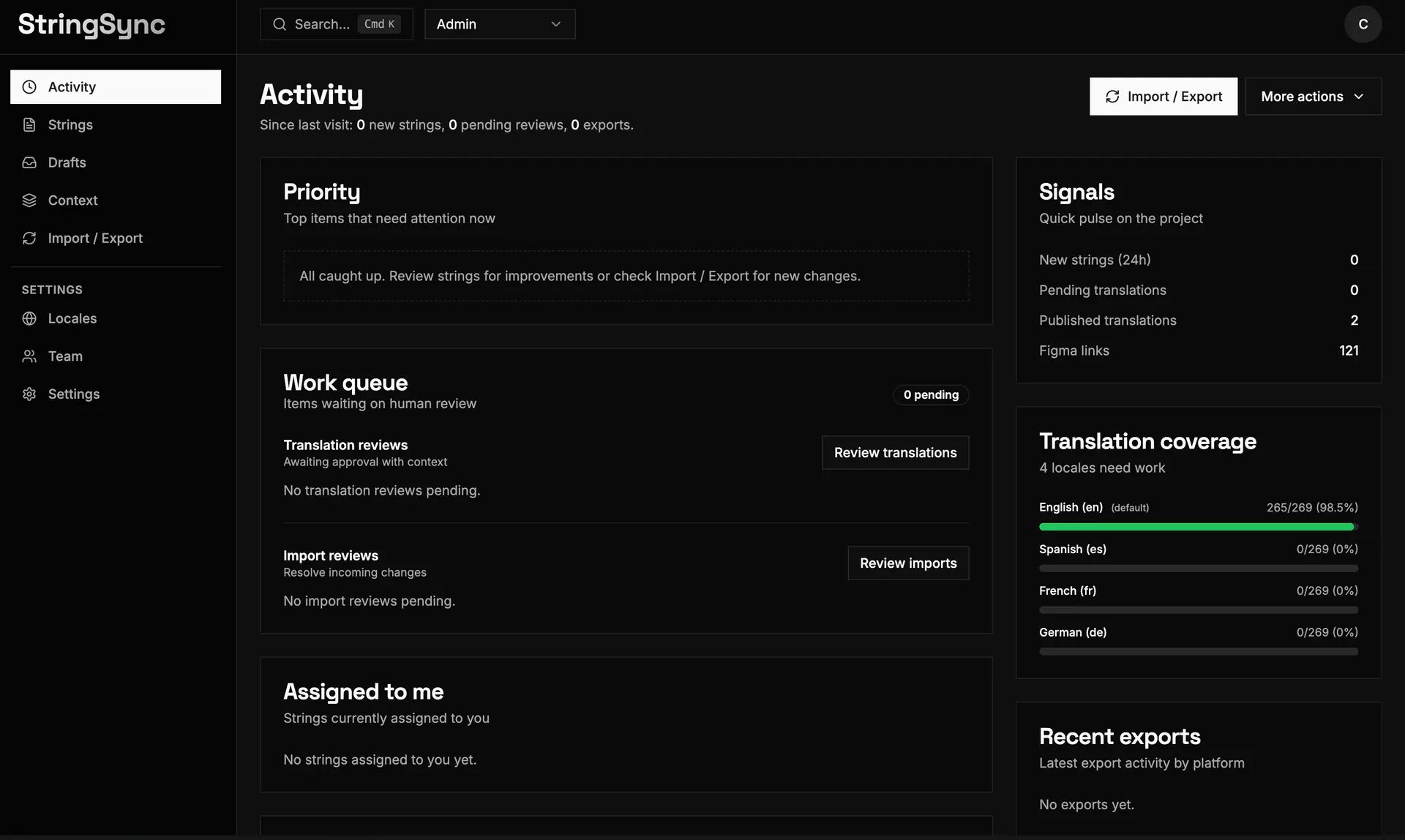
Activity gives the team one place to see what needs attention, what is waiting for review, translation coverage, Figma links, assignments, and recent exports.
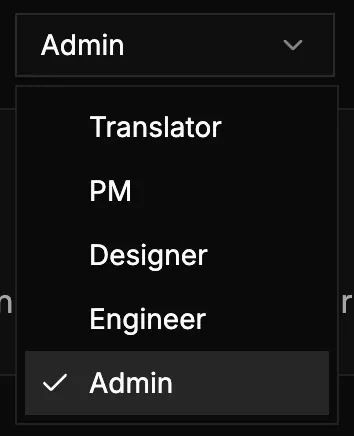
Role mode keeps each workflow focused. Translators, PMs, designers, engineers, and admins land on different starting pages and see navigation and primary actions shaped around their work.
One key can have four values
A string key is a stable name for a piece of product copy. Here, checkout.pay has a different value in Figma, code, a translation file, and the live product. String Sync shows these differences in one place, so the team can see what is out of sync before anyone changes it.
One key with four different values
100%
Rendering system map…
Figma, code, a translation file, and the live product show different values for the same key.
Keep one approved value
String Sync stores one approved English value for each key. A new key can add its first value. The same value needs no action. A different value becomes a proposal for review. Until someone approves it, the current value stays as the source for design and translation.
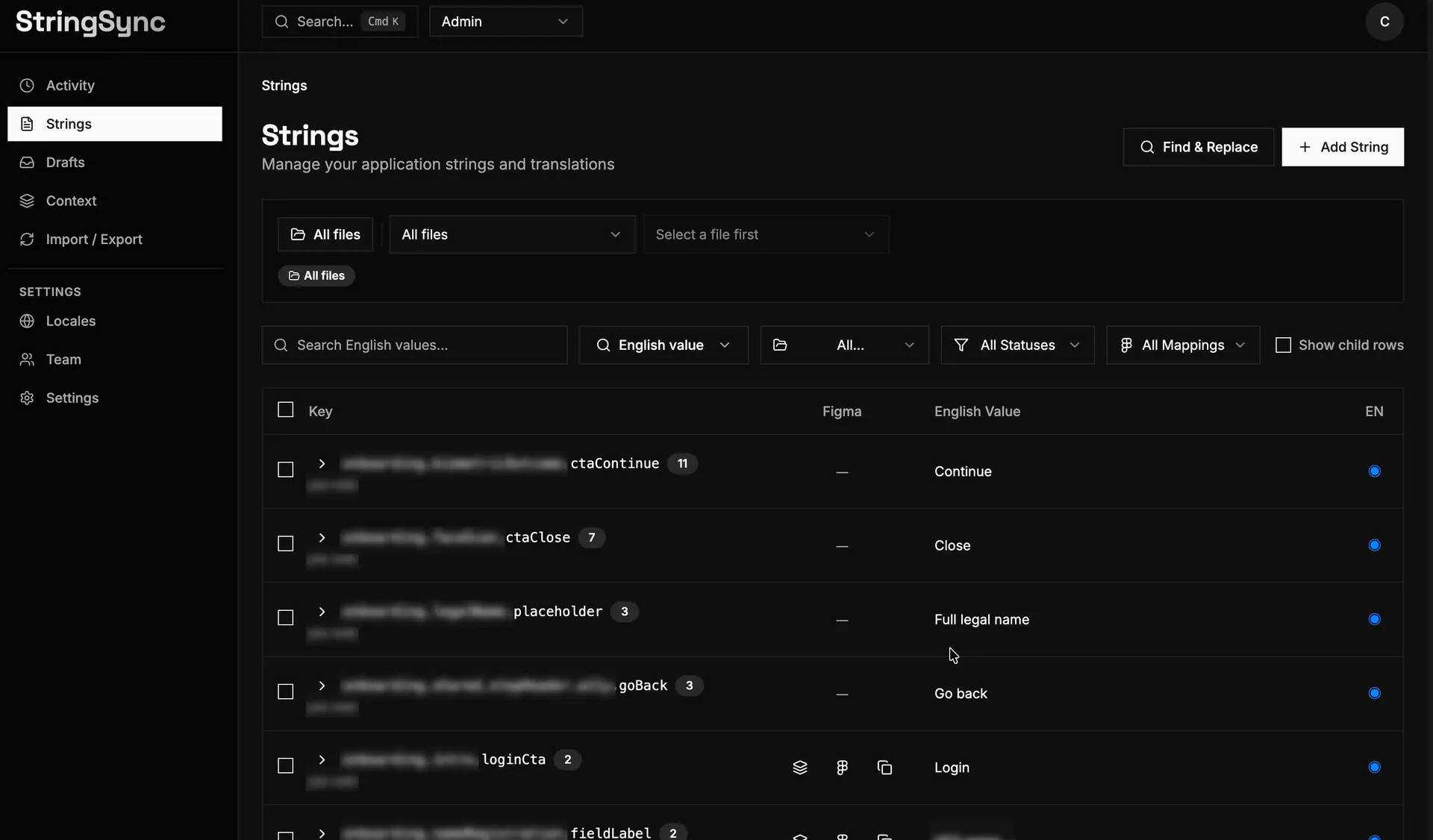
The Strings table is the shared catalog. The team can search and filter keys, see their English values, check Figma links, and review status across files.
How a value reaches the approved source
100%
Rendering system map…
A new value is either added, left unchanged, or sent for review before the approved English value can change.
Code can add or change a value
A call such as t("checkout.pay", "Continue") gives the command-line tool (CLI) a key and a default value. The CLI reads both and decides whether the key is new, unchanged, or needs a proposal. A separate cleanup scan finds keys that are no longer used. A normal scan never marks a live key as missing.
What the CLI does with a value from code
100%
Rendering system map…
The CLI reads a key and value from code, then creates the key, leaves it unchanged, or sends a proposal.
Figma keeps the words in context
In Figma, each text layer can stay linked to its key and frame. A designer can preview another language without losing that link. They can connect the layer to checkout.pay or create a new key. If the key already exists, the plugin asks them to link it instead of creating a duplicate.
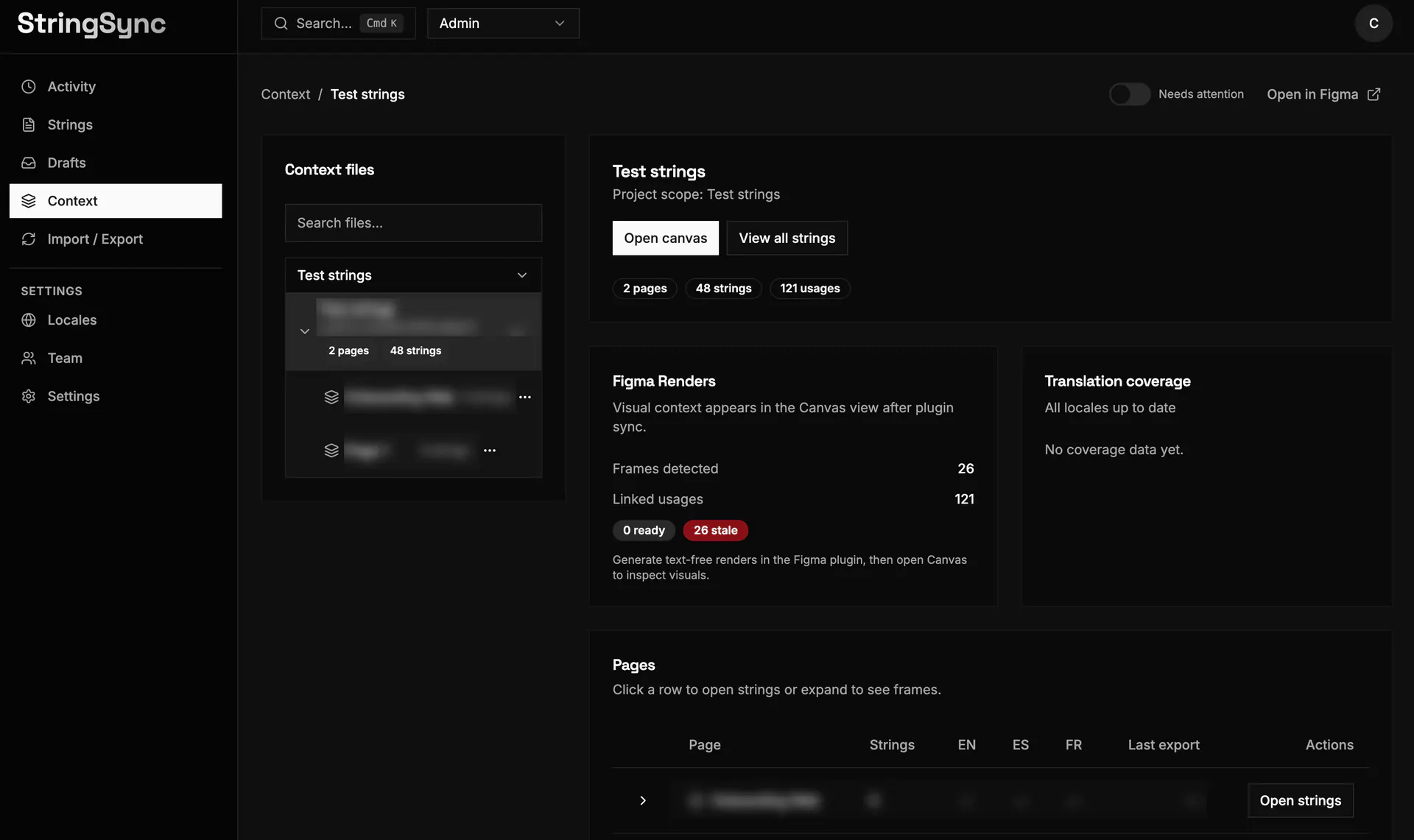
Context organizes linked Figma files into pages and frames. It shows string and usage counts, render health, translation coverage, and links into the editable canvas or back to Figma.
Link a Figma layer or create a new key
100%
Rendering system map…
A Figma layer is linked to an existing key or given a new key before the designer previews another language.
Edit copy inside the real screen
String Sync mirrors a Figma screen inside the web app. It combines a text-free image of the frame with the text layers in their original positions. When someone selects a string and edits it, the canvas updates at once. They can check the real layout, see when the new text no longer fits, and save only when the change looks right.
Edit a string while seeing the Figma screen
100%
Rendering system map…
A text-free Figma frame and its text layers become an editable web canvas where each change appears before saving.
Compare the values first
When a new value is different from the approved value, String Sync shows both. The approved value stays live while the new one becomes a proposal. The proposal can also include where it came from. If the values match, nothing changes. If they differ, the team gets a clear item to review.
Compare a new value with the approved value
100%
Rendering system map…
The system compares the new value with the approved value, then does nothing or creates a proposal.
A person approves the change
Before approving new copy, a reviewer needs to see what’s live, what’s proposed, and where the suggestion came from. String Sync brings those details together so a product manager or admin can make the call. Until then, the approved value stays in place.
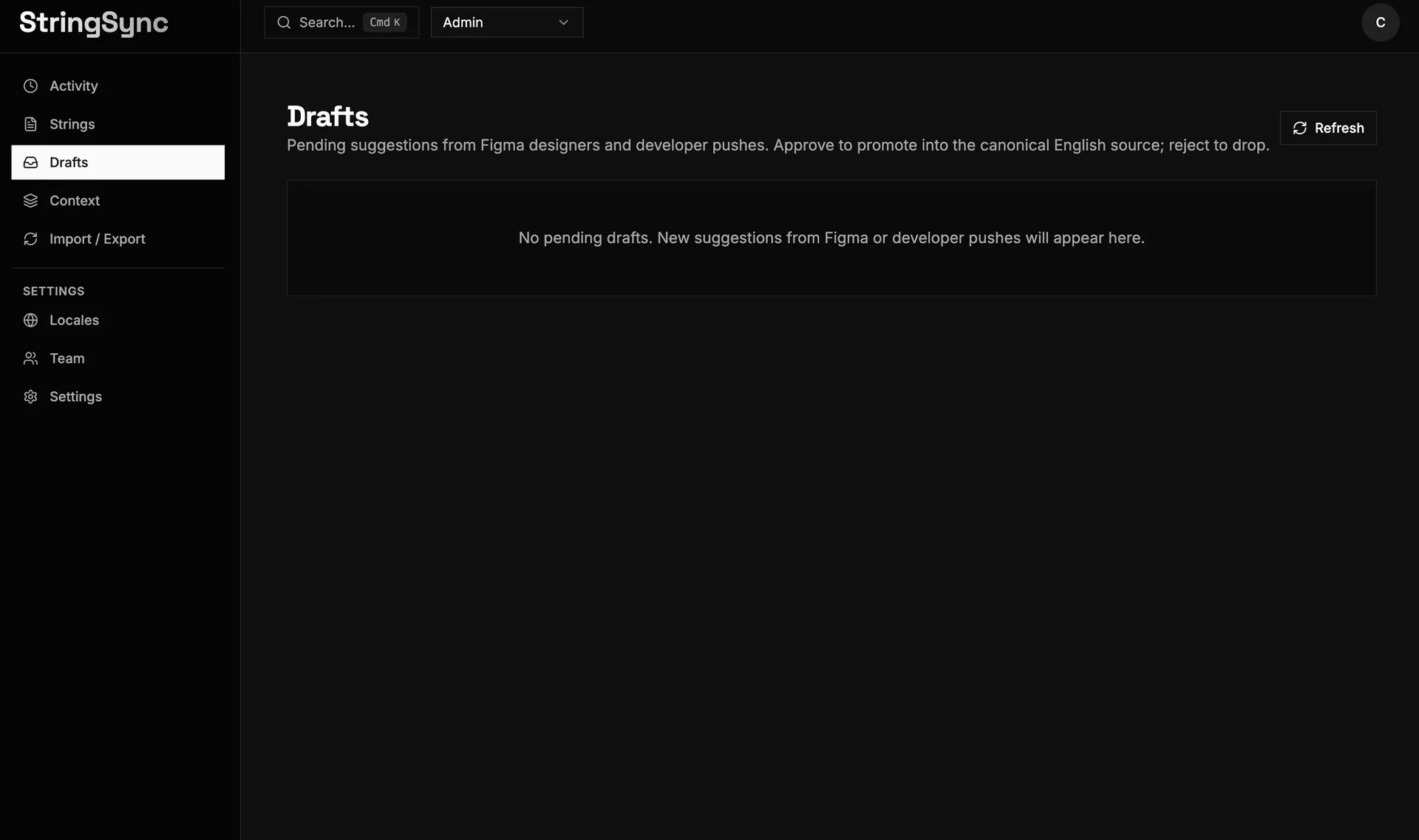
Drafts collects proposed English changes from Figma and developer pushes. Each item keeps the current and proposed values together, shows where the change came from, and waits for approval or rejection.
A person reviews the proposed change
100%
Rendering system map…
A product manager or admin sees the current value, proposed value, and source details before approving or rejecting it.
Approval updates the source
When approved, the proposed value becomes the new approved English copy and the pending proposal is cleared. It also updates the English translation unless a product manager changed it by hand. A rejection clears the proposal and keeps the current copy. Nothing changes before review.
What happens after approval or rejection
100%
Rendering system map…
Approval makes the proposal the new approved English value, while rejection keeps the current value.
Translations keep their context
Translation starts with the approved English copy and a Figma frame that shows where the words appear. The system can hide the real words in the frame while keeping the layout. This gives translators useful context. Translated values stay separate and never replace the approved English source.
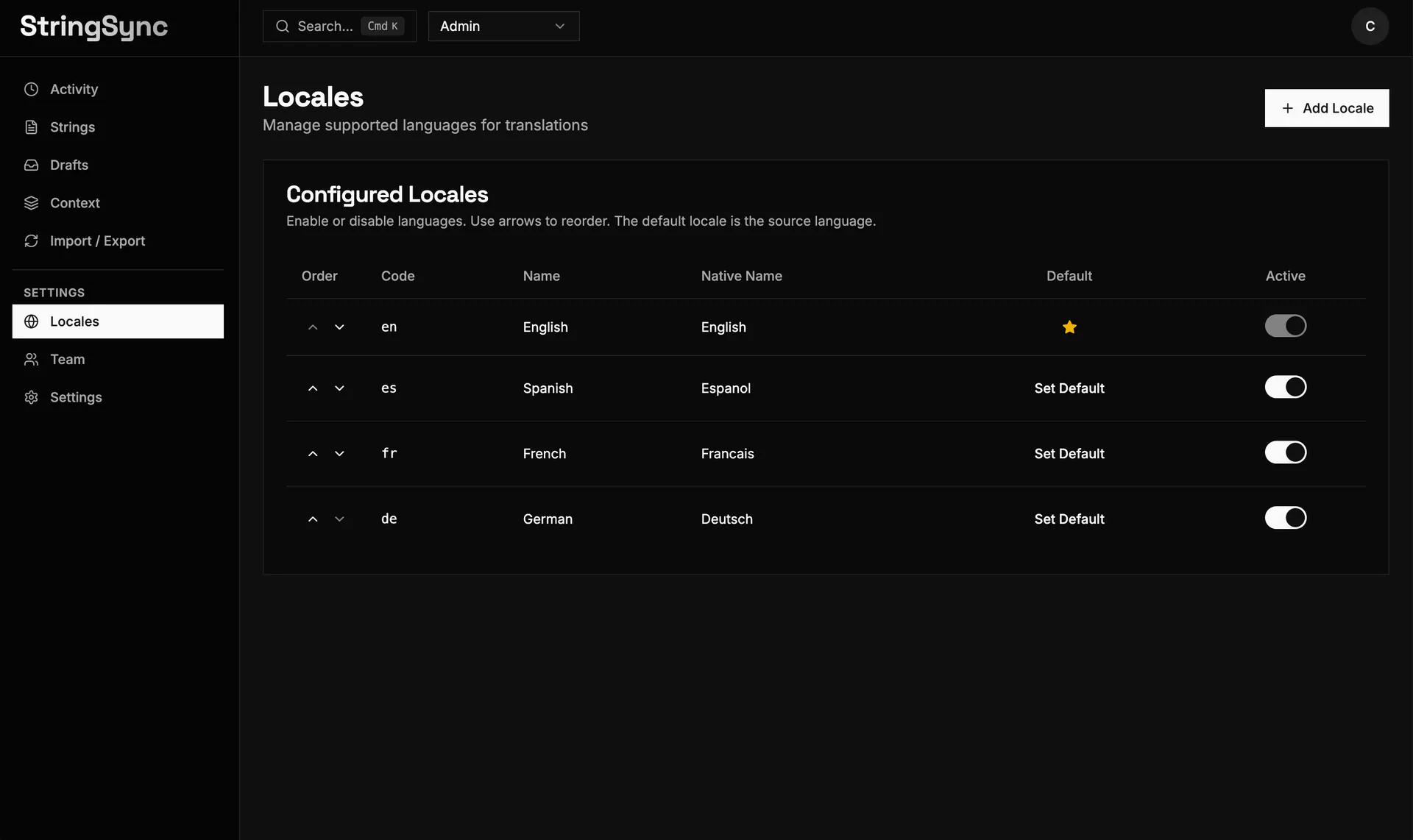
Locales lets an admin add languages, choose the source language, reorder which languages appear first, and turn non-default locales on or off.
Translate with the English copy and Figma context
100%
Rendering system map…
The translator sees the approved English copy and a Figma frame, while translations stay separate from the English source.
Send approved copy back out
Approved copy returns through clear output paths. The CLI writes translation files, Figma applies values by key, and the live product receives generated files during the normal release process. Each output can be checked. String Sync does not edit application source code by itself.
Send approved copy to Figma and the live product
100%
Rendering system map…
Approved copy goes to translation files and the live product through the CLI, and to Figma through a separate path.
Check before removing a key
Cleanup begins with an optional scan. If one platform no longer uses a key, String Sync marks only that platform link as missing. The shared key is marked unused only when no tracked platform still uses it. A person then chooses to keep, review, or remove it. Nothing is deleted automatically.
Check every platform before removing a key
100%
Rendering system map…
A platform link is marked missing first, and the shared key is marked unused only when no platform still uses it.
Built end to end
I designed the product and built every part of String Sync. This included the Figma plugin, review app, developer command-line tool (CLI), backend, and the rules that keep them connected.